


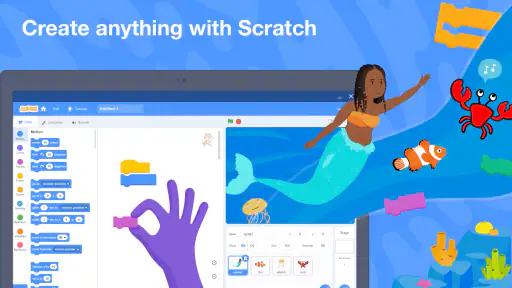
When I try an educational app with children in mind, I look beyond whether it is fun. I want to know what a young learner can actually do, how much control a parent or teacher has, and whether the creative work feels worth the time spent learning the interface. Scratch makes a strong first impression because it turns programming into a visual activity: instead of beginning with lines of typed code, I can build stories, games, and animations by arranging blocks.
That approach makes it feel less like a traditional coding lesson and more like a digital workshop. I can experiment, make a mistake, change one part, and immediately see what happens. The app is free, aimed at everyone, and comes from the Scratch Foundation, which gives it a clear educational identity rather than making it feel like a game with a thin learning label. Its average rating is 3.8, based on around 16 thousand ratings, and it has passed one million installs, so it is clearly being tried by a substantial audience.
My overall view is positive, but cautious. Scratch is best understood as a creative introduction to programming, not a complete coding course or a tightly controlled classroom platform. It can help a child understand sequences, events, repetition, and cause and effect. At the same time, the open-ended nature that makes it exciting can also make it confusing, especially for a child who wants guided lessons, offline simplicity, or a completely private workspace.
What the app feels like in real use
The central experience is building a project from visual pieces. I can imagine a character moving across a scene, reacting to a tap, speaking in a speech bubble, or changing direction after an event. The important part is that the result appears quickly. A learner does not need to understand every programming term before seeing a character respond to an instruction, and that immediate feedback encourages experimentation.
This is where the app differs from many beginner coding alternatives. A text-based lesson often asks a child to type exact commands and then explains an error when something goes wrong. Scratch moves the first barrier away from spelling and punctuation. The learner still has to think logically, but the early challenge is arranging ideas rather than remembering syntax. For younger users, that can be a meaningful advantage.
I also like that the projects can be personal. A child can create a short animated story about a pet, make a simple maze, or design a character that reacts to different actions. These are not merely exercises with one correct answer. The creative freedom gives the child a reason to keep testing the blocks, which is often more motivating than completing a worksheet.
That freedom has a trade-off. A blank project can be intimidating. If a learner opens the app without an idea, the number of possible directions may feel like a problem rather than an invitation. I would not simply hand it to a very young child and expect a complete learning experience without support. A parent, teacher, or older sibling can make a big difference by suggesting a small first project, such as making a character move, speak, and return to its starting point.
Why the visual blocks matter
The block system teaches several useful habits without requiring the learner to memorize formal code. A child can see that an action needs a trigger, that repeated behavior belongs inside a loop, and that changing the order of instructions changes the result. Those ideas transfer well to later programming, even though the visual format is much friendlier at the beginning.
One practical tip is to ask the learner to predict what will happen before pressing the play control. That turns the activity from random trial and error into a small reasoning exercise. Afterward, I would ask which block caused the result and what would happen if it moved. This simple habit makes the app more educational than merely dragging pieces until something looks entertaining.
Another useful workflow is to build in layers. I would begin with one character and one action, test it, then add a second action, sound, or scene. When everything is added at once, it becomes difficult to identify the cause of a problem. Scratch is forgiving enough for experimentation, but a child still benefits from learning to isolate changes.
Creative projects are the strongest learning tool
In my experience, the best reason to use Scratch is not that it teaches isolated programming vocabulary. It is that a project gives those ideas a purpose. A loop becomes meaningful when a character needs to keep walking. An event becomes clear when a button or action starts a scene. A condition matters when the character should react differently depending on what happens.
For a family setting, I would use a short weekly challenge rather than an open instruction to “learn coding.” One week could focus on movement, another on a conversation between characters, and another on a game rule. The child can finish with something visible and shareable, while the adult can discuss the thinking behind it without turning the session into a formal lecture.
Teachers can also use the app for subjects outside computing. A student could animate a short explanation of a science process, create a historical scene, or build an interactive vocabulary activity. The value comes from asking the learner to express an idea through behavior and interaction, not just decorate a presentation.
Sharing changes the trust question
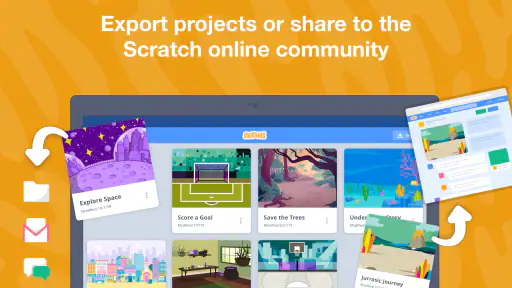
The ability to share creative work around the world is part of the app’s appeal, but it also means the experience is not purely private by default in spirit. A child may think of a project as a personal drawing, while publishing it makes it part of a wider community environment. That difference is worth explaining before a young user starts creating or sharing.
I would review every visible sharing choice with a child and agree on a simple rule: do not include a full name, school details, location, face, or other personal information in a project. Even when the creative work itself is harmless, titles, character names, spoken dialogue, or background images can reveal more than intended. This is not a reason to avoid the app; it is a reason to treat publishing as a deliberate step.
Parents should also decide whether a child needs community interaction at all. If the goal is learning blocks and making animations, private creation may be enough. If the child is ready to learn from other projects, browsing can provide inspiration, but it should be accompanied by age-appropriate supervision. The app’s Everyone content rating does not remove the need for an adult to discuss online behavior and personal boundaries.
Controls, account choices, and data-sensitive moments
What I would check before a child starts
Trust is not only about the developer’s name. It is also about whether the adult using the app understands the choices presented on the device and can make decisions that fit the child. Before beginning, I would look through the sign-in flow, any account prompts, sharing settings, and device permission requests. I would avoid creating an account immediately unless the child genuinely needs the related functions.
That approach keeps the first session focused on making something rather than entering information. It also gives the adult time to understand which parts of the experience involve a personal profile or public interaction. If an account becomes useful later, it can be created with a carefully chosen username that does not identify the child.
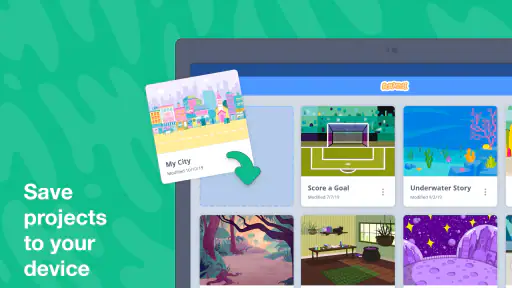
A good family routine is to separate three actions: creating, saving, and sharing. Children often treat these as the same thing because they happen close together in creative apps. I would explain that making a project is one choice, keeping it accessible is another, and showing it to other people is a third. This distinction gives the child a clearer sense of control.
For classroom use, I would ask the teacher to decide whether projects should be made individually, in pairs, or as a demonstration. Shared devices and shared accounts can blur ownership, so a simple naming convention that avoids personal details can help. The teacher should also establish whether students may view community projects during class or whether the lesson will stay within teacher-selected activities.
Where privacy deserves extra attention
The most data-sensitive moments are usually not the creative blocks themselves. They are the moments when a user considers creating an account, publishing a project, interacting with other people, or granting an app access to something on the device. I would slow down at each of those points instead of tapping through quickly.
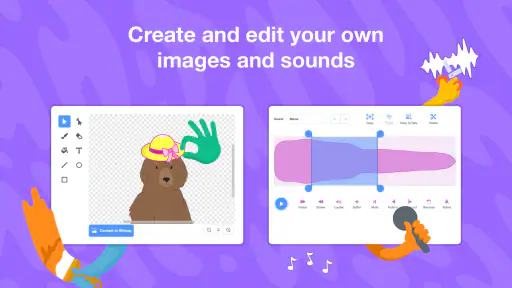
Audio and images deserve particular care. A child may add a voice recording, take a picture, or use a background that includes a home, street, uniform, or family member. Those choices can reveal personal information even when the child does not type any identifying text. I would encourage original drawings and general backgrounds for public projects, and I would keep private family material out of anything intended for wider sharing.
I would also teach the child how to stop and ask before responding to an unfamiliar person or following a request. The important lesson is not simply “never interact.” It is knowing that a creative community still requires boundaries. If the child is too young to understand those boundaries, I would keep use supervised and focus on making projects rather than exploring social features.
Because the app is free, the financial decision is straightforward: there is no purchase price to remove before trying it. That does not mean every decision is automatic. Time, attention, account information, and public visibility are still forms of cost, and I would evaluate those before recommending independent use.
How much guidance does a beginner need?
Scratch is more approachable than a text editor, but it is not magic. A learner can still become stuck when a character does not respond, when two instructions conflict, or when a project grows beyond what the child can mentally track. I would expect the first few sessions to include questions such as “Why did it do that?” and “Which block should come first?” Those questions are productive if an adult helps the child investigate rather than fixing everything.
One of the most effective methods is to keep a small project journal. The child can draw the intended sequence, write what happened, and note the one change made next. This is especially helpful when a project contains several characters or scenes. It turns frustration into debugging practice and gives the child a way to remember what was learned.
Another strong technique is to duplicate an idea in a simpler form. If a game becomes too complicated, I would ask the learner to make one character and one rule work first. Once that smaller version behaves correctly, the child can add the next feature. This teaches a real development habit: reduce the problem until the cause of the error is visible.
Where other tools may be better
Compared with text-based coding apps, Scratch is the better starting point for children who are still developing confidence with typing or who learn best through visual feedback. It reduces syntax frustration and makes animation and storytelling feel immediate. A text editor becomes more appropriate when the learner wants to work with conventional programming languages, understand exact syntax, or build projects outside the visual environment.
Compared with tightly structured educational platforms, Scratch offers more creative freedom but less of a prescribed path. A child who needs short lessons, automatic progression, and a clear next task may prefer a guided course. A child who already has an idea and wants room to explore may find those courses restrictive. I would choose based on the learner’s temperament, not on the age label alone.
Compared with a private drawing or animation app, Scratch adds logic and interaction. That makes it more educational for someone interested in how systems behave, but it can feel unnecessarily complex for a child who only wants to draw scenes or make a simple slideshow. The right choice depends on whether the desired outcome is a picture, a movie-like sequence, or a responsive project.
A realistic afternoon with the app
Imagine a child has forty minutes after school and wants to make a small game. I would begin by asking for one clear rule: the character should reach a target without touching an obstacle. The child could first create the scene, then make the character move, then add the obstacle rule. At each stage, I would ask the child to test before adding anything else.
If the character behaves unexpectedly, I would resist taking the device and repairing it myself. Instead, I would ask what the child expected, which instruction should have caused that behavior, and whether the event happens once or repeatedly. Even a failed attempt becomes useful when the child can explain the difference between the intended sequence and the actual one.
At the end, I would decide together whether the project should remain private or be shared. If it is shared, I would inspect the title, characters, dialogue, and background for personal details. That final review connects programming, creativity, and digital judgment in one practical activity.
Who should use it and who should wait?
I would recommend Scratch to children who enjoy stories, puzzles, drawing, games, or making things behave in surprising ways. It is also a good choice for parents who want to explore coding together rather than hand over a passive entertainment app. Older beginners can use it independently once they understand the basic project structure, while younger children will usually benefit from a guided first session.
I would be more hesitant for a child who becomes frustrated by open-ended tasks, needs a fully sequenced curriculum, or is not ready to understand sharing boundaries. In those cases, a structured coding course or an offline activity may be a better first step. I would also skip it as the main tool for someone who already wants professional-style programming; the visual blocks are an introduction, not a replacement for learning a text-based language.
The application was released on November 12, 2019, and its free availability lowers the barrier to trying it. Its age rating is Everyone, which makes it suitable for a broad audience, but I still would not treat that label as a substitute for supervision. Age suitability and family readiness are related, not identical.
My cautious recommendation
Scratch earns my recommendation when the goal is creative learning with visible results. I like the way it lets a beginner connect an idea to an action without first wrestling with typing rules. The strongest sessions are the ones where a child starts with a small story or game, tests each change, and gradually learns to explain why the project behaves as it does.
I would use it with clear boundaries around accounts, sharing, personal information, and device permissions. I would also set expectations: the app can open the door to programming, but it will not automatically provide a complete course or solve every beginner’s confusion. An adult’s questions and a manageable project plan often matter as much as the app itself.
For families and educators willing to provide that light guidance, the free app from the Scratch Foundation is a worthwhile place to begin. For users who want a private, linear, lesson-by-lesson system or immediate access to conventional coding, another tool may fit better. My final judgment is therefore favorable but practical: choose it for experimentation, storytelling, and first programming ideas, and make privacy and sharing decisions consciously rather than treating them as an afterthought.


